Hello, tech-savvy home manager! 🏡🤖 Want to give your robot vacuum voice commands via Siri? Let's set up voice control for an even smarter home!
📱 Adding Voice Control Steps
Step 1: Launch the Dreame Home App
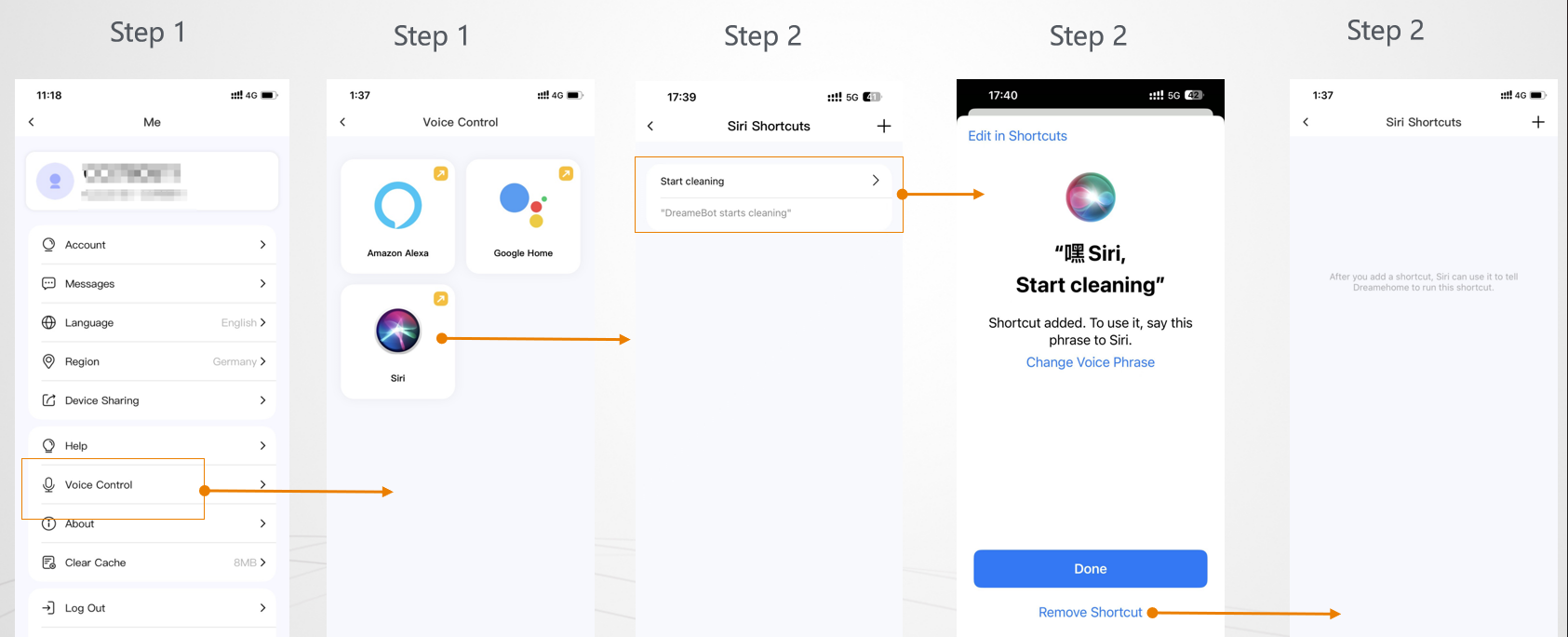
- Open "Me" Section: Fire up the Dreame Home App, head to the "Me" section, and tap on "Voice Control."
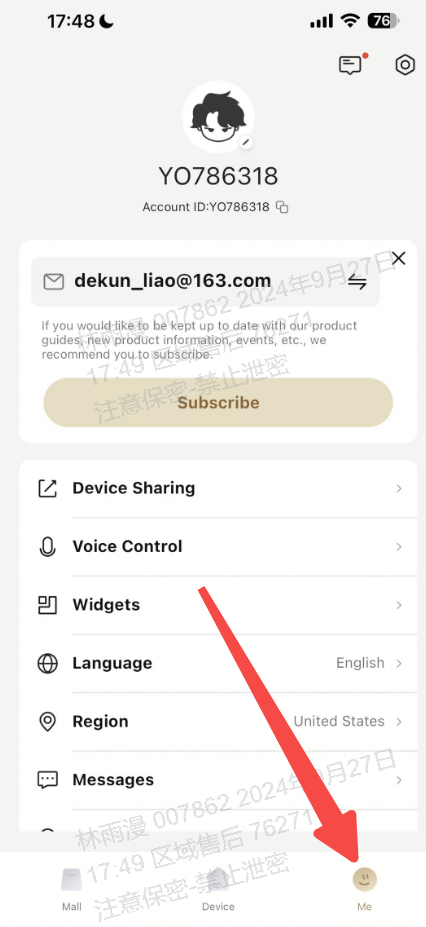
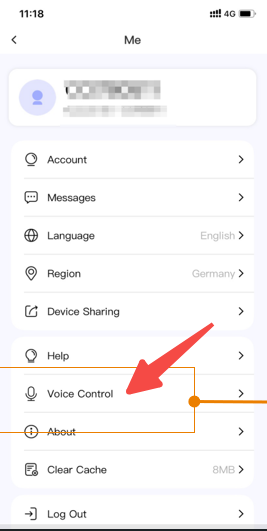
Step 2: Link with Siri
- Enter Siri Shortcuts: Tap on Siri to be taken to the Siri Shortcuts page.
- Add a New Shortcut: At the top right, tap the "+" icon to create a new voice command.
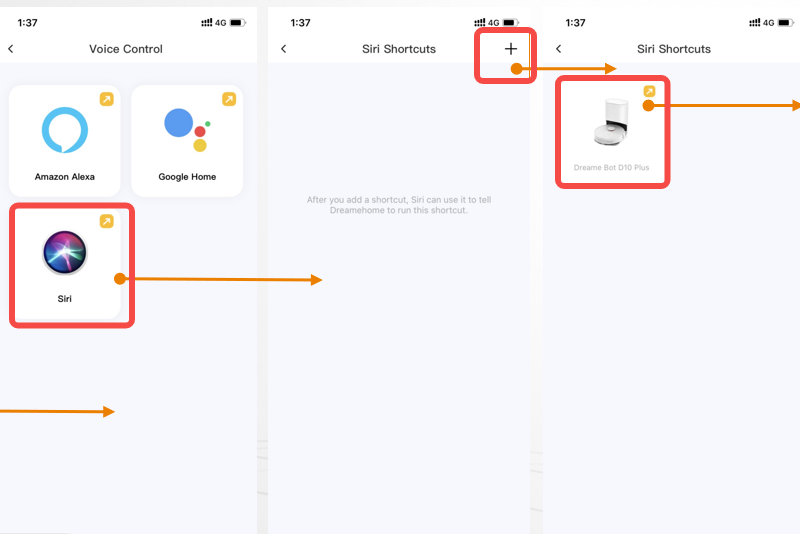
Step 3: Choose a Device and Command
- Select Your Device: Choose the device you want to control with Siri.
- Set Up the Command: Decide what you want to say to trigger the command, fill in or record the command, then tap "Finish" to add the voice command.
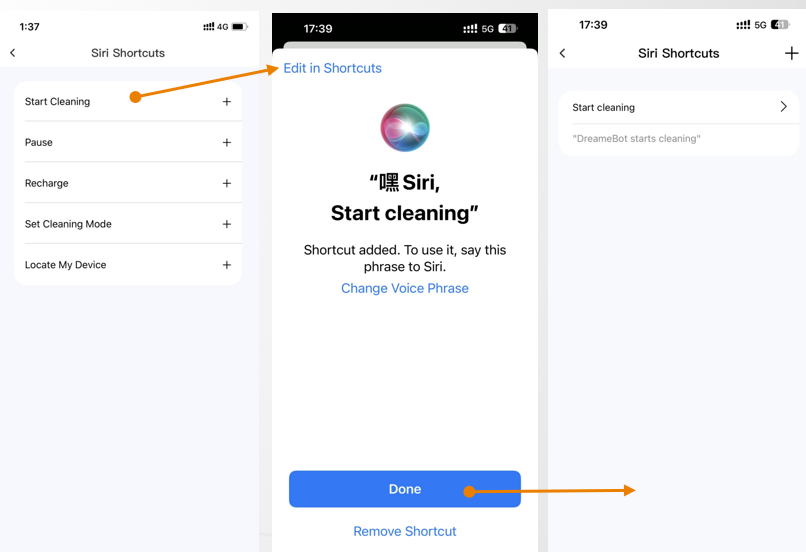
❌ Removing Voice Control Steps
Step 1: Open Dreame Home App
- Go to "Me" and "Voice Control": Launch the Dreame Home App, navigate to "Me," and select "Voice Control."
Step 2: Delete the Siri Shortcut
- Enter Siri Shortcuts Page: Tap on Siri to access the Siri shortcut commands you've set up.
- Choose the Command to Remove: Pick the command you want to delete.
- Remove the Shortcut: Tap on "Remove Shortcut Command" at the bottom of the pop-up window to delete the voice control.
💡 Tips for a Smooth Siri Setup
- Speak Clearly: Make sure to speak clearly when recording your commands for Siri.
- Check Compatibility: Ensure your robot vacuum model is compatible with Siri voice commands.
- Keep It Simple: Use simple and memorable phrases for your voice commands.
Final Thoughts
With these steps, your robot vacuum will be ready to respond to your Siri commands, making your cleaning routine even more effortless. Remember, a well-integrated home is a happy home! If you need further assistance, we're just a call or click away. Enjoy your voice-controlled cleaning experience! 🌟

Comments
0 comments
Please sign in to leave a comment.