Introduction: Hey there! Ready to make your home smarter and more connected? Let's get your Dreamehome App and Google Assistant best friends! It's super easy, and I'll walk you through it step by step.
Before We Start: Just a few quick checks before we dive in:
- You've got the latest version of the Dreamehome App on your phone, right?
- You're all logged in and comfy with your Dreamehome App account.
- You've got a device connected to your Dreamehome App, and it's chilling online.
- Your Google Home and Google Assistant are up to date and ready to roll.
- You're all set up and signed in with Google Home.
Let's Get This Party Started:
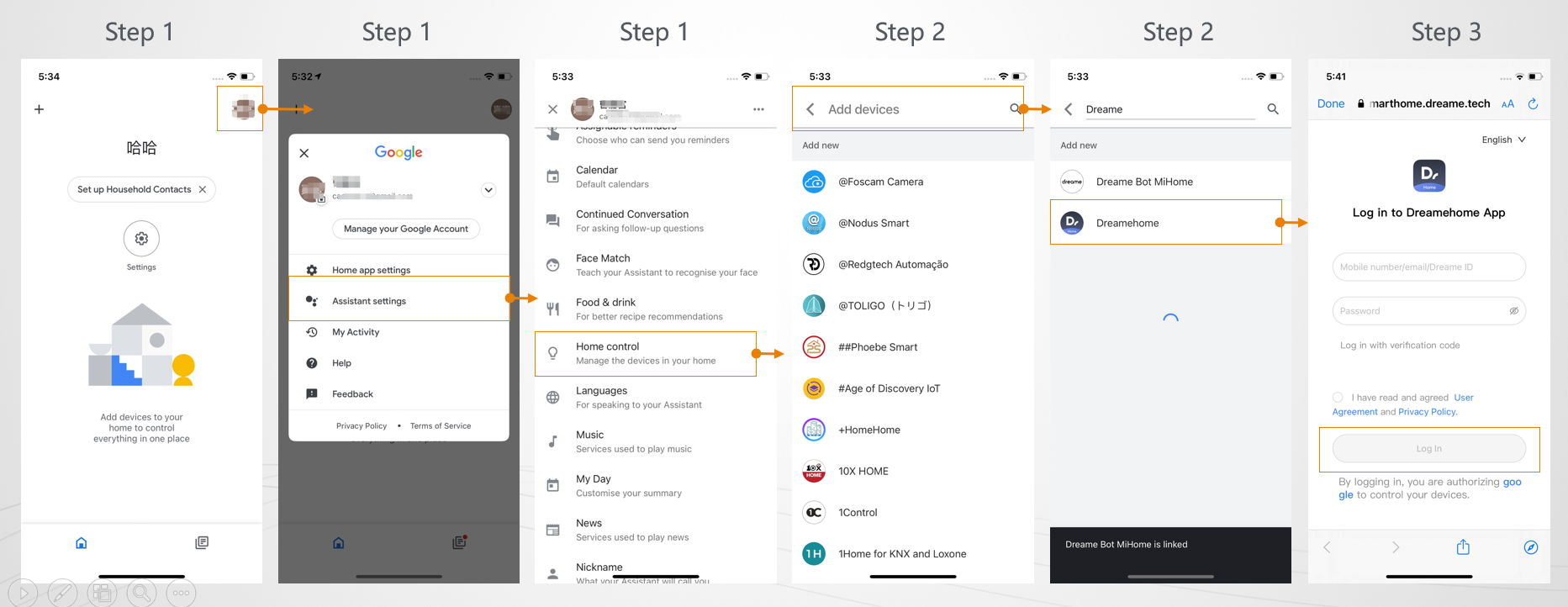
Step 1: Fire up the Google App. Tap on your avatar in the top right corner to get into account management. Then, pick "Home control" from the menu.
Step 2: Time to add a new buddy! In the "Add devices" section, type "Dreamehome" into the search bar and give "Dreamehome" a tap to start the party.
Step 3: Now, jump back to the Dreamehome App and hit that "Log in" button. We're going to link your Dreamehome account with Google, so get ready to make a new connection.
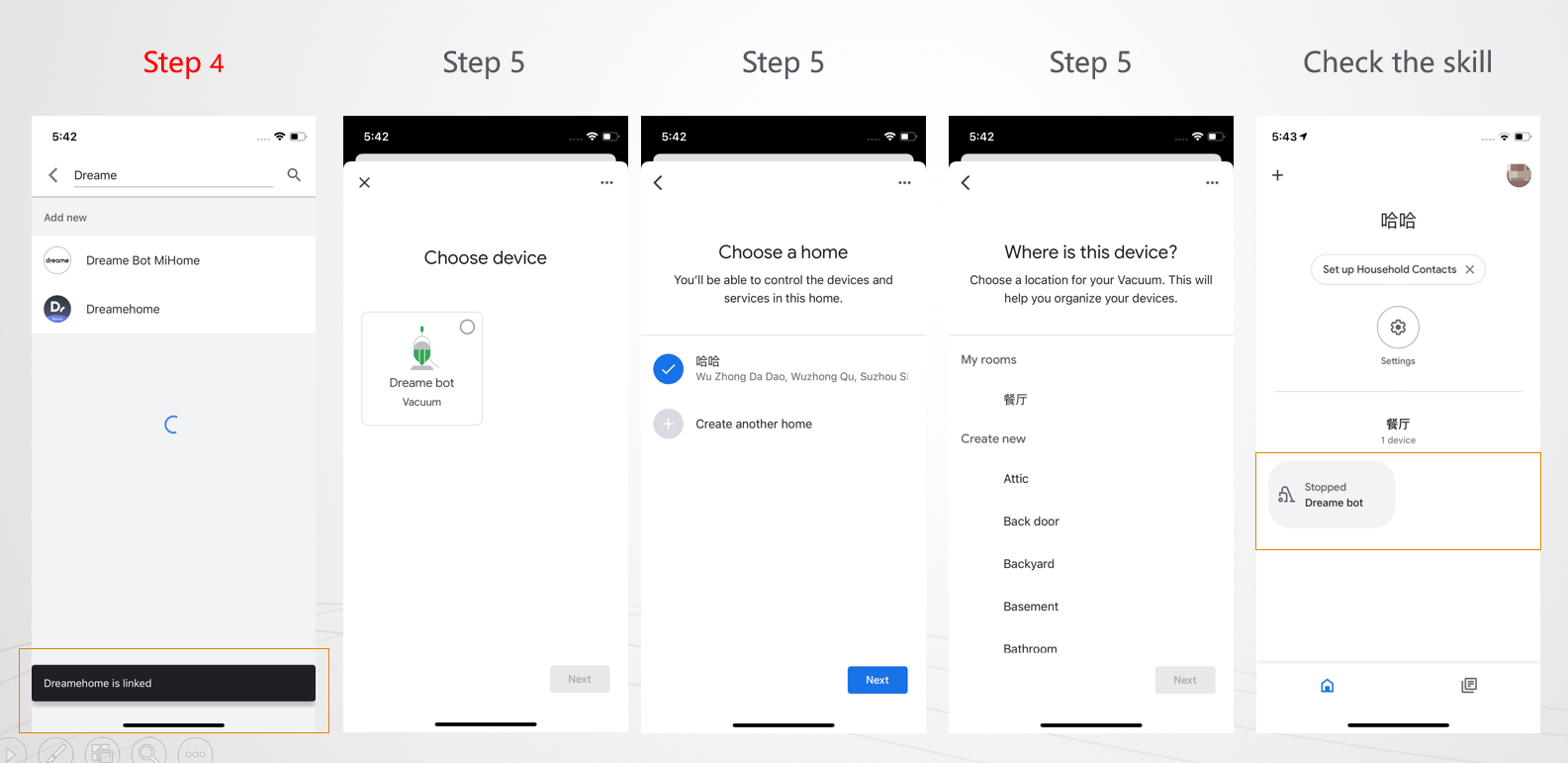
Step 4: Patience is a virtue—just wait about 3 seconds, and you'll see a message saying the binding is a success! If you hit a snag, no worries, just rinse and repeat these steps.
Step 5: Pick out your device and decide which room it lives in (or just tap the close icon if you're not feeling it).
Step 6: And voilà! Once the binding is all good, you'll see your device chilling on the home page, ready to do your bidding.
Conclusion: There you have it! Your Dreamehome App and Google Assistant are now BFFs. You can control your smart home devices with just your voice, making life a little easier and a lot more fun. If you run into any hiccups or have questions, don't hesitate to reach out to Dreame's support team. Happy smart home-ing!

Comments
0 comments
Please sign in to leave a comment.