Hey there, smart home enthusiasts! 👋 Are you ready to take your home automation to the next level by connecting Alexa with your Mi Home app? We've got you covered with this easy-to-follow guide. Let's get started!
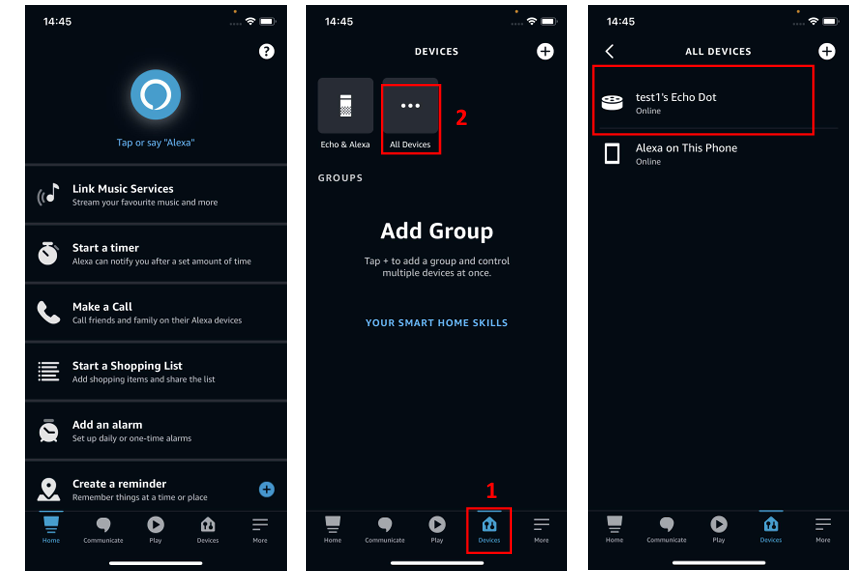
Step 1: Ensure Your Echo Device is Online
Before we dive into the connection process, let's make sure your Echo device is up and running:
- Head to the "Devices" section in your Alexa app.
- Select "All devices" to verify that your Echo is online and ready to connect.
Step 2: Link Alexa with Mi Home
Now, let's bridge the gap between Alexa and Mi Home:
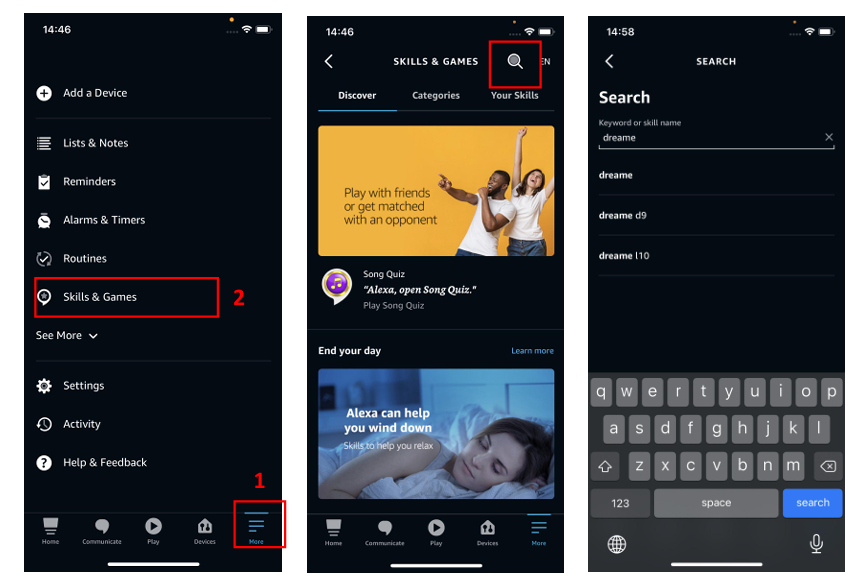
- In your Alexa app, tap "More" at the bottom.
- Choose "Skills & Games" from the options.
- Use the search bar to look up "Dreame."
- Select the official "Dreame" skill when it appears.
- Enable the skill to start using it with Alexa.
- Remember, this skill needs a Mi Home account. If you haven't already, download the Mi Home app, create an account, and log in.
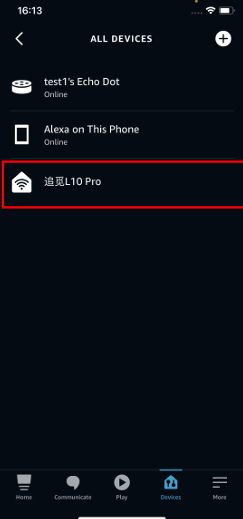
- Once connected, you'll see your Mi Home devices in the Alexa app. If your device list isn't up to date, simply say, "Alexa, search devices" to refresh it.
FAQ: Troubleshooting Common Issues
Issue 1: Mi Home App Can't Connect to Amazon Alexa
If you're having trouble linking your Mi account to Alexa, double-check these points:
- Ensure you have the latest version of the Mi Home app downloaded.
- Make sure you've created and logged into your Mi account.
- Disable any pop-up blockers on your mobile device.
- Confirm that Alexa is online.
Issue 2: Alexa Doesn't Understand Your Commands
If Alexa seems a bit confused by your questions, here's what to do:
- Make sure you're using the correct, supported commands.
- Double-check that the "Dreame" skill is enabled in your Alexa app.
And there you have it! With just a few simple steps, you can connect your Alexa with the Mi Home app and start controlling your smart home devices with ease. Happy automating, and don't hesitate to reach out if you need further assistance. We're here to help! 🏠🤖

Comments
0 comments
Please sign in to leave a comment.