Hey there, cleaning commando! 🧹✨
Got a super sleek L10s Ultra and want to make it dance to your cleaning tunes? We've got you covered with a super simple guide to setting up your shortcut commands. No "Mop after Vacuum" party tricks, though – that's not on the menu. But fear not, we've got a workaround! 🎉
Let's Dive In!
Step 1: Unlock the Shortcut Command Zone First up, head on over to the magical land where you can whip up or tweak your shortcut commands. It's your command central!
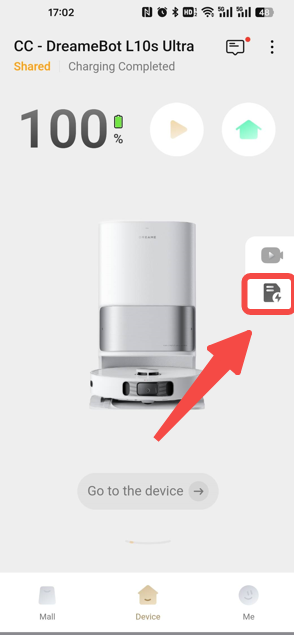
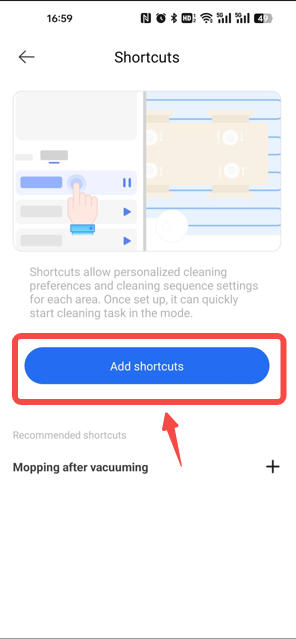
Step 2: Unleash a New Shortcut Ready to roll out a new shortcut command? Great! Jump right in and start the process to add a fresh, shiny shortcut.
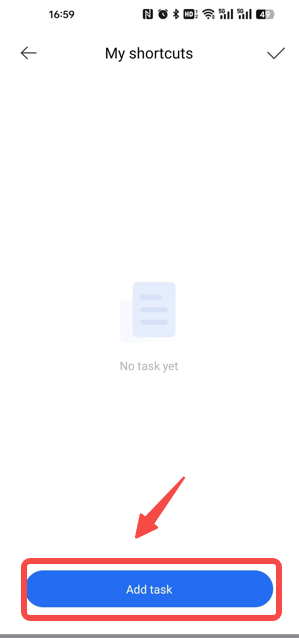
Step 3: Load Up Your Shortcut with Tasks Now, it's time to get down to business. Add the tasks you want your L10s Ultra to tackle with a quick command. Easy-peasy!
Step 4: Dial In Your Cleaning Modes and Lock Down Your Settings Pick the cleaning mode that fits your vibe and tweak the parameters to make it just right. Once you're happy with your choices, give the "√" a click to make it official and save your shortcut command.
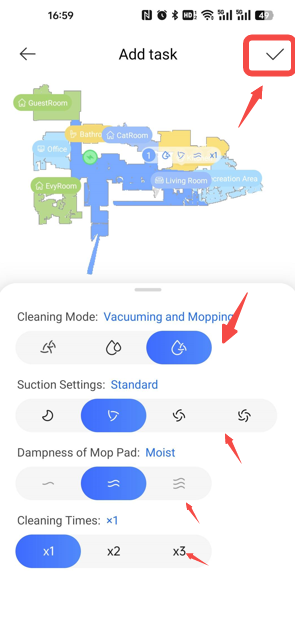
Pro Tip for Sequential Cleaning: Wanna mop after you vacuum? No problem! Just create two separate tasks within the same shortcut. It's like a cleaning duet!
- Kick things off by adding a Vacuum task.
- Then, queue up a Mop task right after.
And there you have it! You're all set to command your L10s Ultra to vacuum and mop in style, one task at a time.
So go ahead, boss your L10s Ultra around with these quick command tasks. Your home will be spick and span in no time, and you'll be the cleaning maestro of the neighborhood. 🏆🌟

Comments
0 comments
Please sign in to leave a comment.